
 All vikis
 007 First Light
 AI
 Aion 2
 Ananta
 ARC Raiders
 ArcheAge Chronicles
 Call of Duty: Modern Warfare 4
 ChatGPT
 Chrono Odyssey
 Civilization 3
 Civilization 4
 Claude
 Crimson Desert
 Deadlock
 Diablo 4
 Diablo 5
 Enshrouded
 Fable
 Final Fantasy Resonance
 Football Manager 27
 Forza Horizon 6
 God of War
 Grand Theft Auto 6
 Heroes of Might and Magic 3
Channel Permissions
YouTube channel permissions let an owner give other Google Accounts the Manager, Editor, Editor (limited), Subtitle editor, Viewer or Viewer (limited) role in YouTube Studio under Settings > Permissions, without sharing a password. Transferring a channel to a new primary owner needs a Brand Account and a 7-day wait.
To add a manager to a YouTube channel, open YouTube Studio, go to Settings > Permissions, click Invite, enter the person's email address, pick a role (Manager, Editor, Editor (limited), Subtitle editor, Viewer or Viewer (limited)) and click Done, then Save; the invitation expires after 30 days if it is not accepted. Channel permissions let a team work on one channel from their own Google Accounts, so nobody needs the owner's password and access can be removed with one click. Handing the channel itself to someone else is a different job: it needs a Brand Account and 7 days of waiting.
Quick facts
| Where | YouTube Studio: Settings > Permissions |
| Roles | Owner, Manager, Editor, Editor (limited), Subtitle editor, Viewer, Viewer (limited) |
| Invitations | Expire after 30 days |
| Who sees the team | Only the owner and managers see names and emails |
| Not covered | YouTube Music, the YouTube Kids app and the YouTube APIs |
| Brand Accounts | Must migrate to channel permissions first |
| New primary owner | Owner or manager for 7 days or more |
Roles
| Role | Can | Cannot |
|---|---|---|
| Owner | Everything, including deleting the channel and managing permissions | Hand ownership to another user through channel permissions |
| Manager | Add and remove people, edit the channel, upload, publish and delete videos, run live streams, post and comment, use the Content detection tab, receive copyright emails | Delete the channel |
| Editor | See all data, edit nearly everything, upload and publish, run live streams, post and comment | Delete the channel or published videos, manage permissions, enter contracts, delete streams or stream keys |
| Editor (limited) | What an Editor can | See revenue data |
| Subtitle editor | Add, edit, publish and delete subtitles | Anything else |
| Viewer | See all channel details and revenue, make Analytics groups, watch streams being set up | Edit anything, manage streams, moderate live chat |
| Viewer (limited) | What a Viewer can | See revenue data |
Source: Add or remove access to your YouTube channel, YouTube Help.
Editor is the usual choice for a video editor or a channel assistant, Manager for a business partner or agency trusted with the team itself, and the limited roles for people who should not see earnings. Subtitle editor suits translators (Captions and Subtitles). The roles carry over to Ask Studio, Studio's AI assistant: it answers from the asker's own permissions, so someone with Viewer (limited) cannot get revenue data through it either.
How do I add a manager to my YouTube channel?
- Sign in to YouTube Studio as the channel owner or a manager.
- Click Settings, then Permissions.
- Click Invite and enter the person's email address.
- Choose a role and click Done, then Save.
The person accepts from the email or from YouTube Studio; the invitation lapses after 30 days. In the YouTube Studio app the path is profile picture > Settings > Permissions > Invite. To remove someone, select them on the same page and choose Remove access. People added this way work in Studio as the channel, but they cannot use YouTube Music, the YouTube Kids app or the YouTube APIs on its behalf.
Brand Accounts
Older channels often sit in a Brand Account, a separate Google identity with its own owners and managers set in the Google Account settings, not in Studio. A Brand Account channel must migrate to channel permissions before people can be added or removed in Studio. Brand Accounts still matter for one thing channel permissions cannot do: change who owns the channel. In a Brand Account, a Manager cannot invite users, delete the channel, make purchases or join or leave a network, and a Communications manager can take no action on YouTube. George Vanous, who runs the Freedom! network, explains the primary owner, owner and manager roles in his video "YouTube roles explained: Primary owner - Owner - Manager - KYC #23".
How do I transfer a YouTube channel to someone else?
Ownership moves through a Brand Account, and Google requires two waits of 7 days or more: the person making the change must have been an owner for 7 days, and the new primary owner must have been an owner or manager for 7 days.
- If the channel uses channel permissions, put it in a Brand Account (YouTube's move channel steps under Settings > Advanced settings, after opting out of channel permissions and removing the people added there).
- In the Google Account's Brand Accounts page, select the account and choose Manage permissions.
- Invite the new person as an Owner and wait for them to accept.
- After 7 days, open Manage permissions again, click the arrow beside their name and choose Primary owner, then Transfer.
George's video "Transfer YouTube channel ownership!" walks through the same handover. Deleting the Google Account that is the primary owner deletes the channel with it (Help), so the old owner should leave only after the transfer is done. A monetized channel also has its own AdSense for YouTube link, which the new owner should check after the handover.
Security
Permissions are the safe way to share a channel: each person signs in with their own account and 2-Step Verification, and the owner can see and revoke access at any time. YouTube's hacked channel advice asks owners to review the people with access after any break-in: managers and editors should secure their own Google Accounts too, since a compromised manager account can also lead to a hacked channel, and YouTube suggests revoking their access until they have. Sharing a password instead gives the other person everything, including the power to lock the owner out.
Frequently asked questions
How do I add someone to manage my YouTube channel? In YouTube Studio, go to Settings > Permissions > Invite, enter their email, pick a role such as Manager or Editor, and save. They must accept within 30 days.
What is the difference between a YouTube Manager and Editor? A Manager can add and remove people and delete videos; an Editor can upload and edit nearly everything but cannot manage permissions, delete published videos or enter contracts. Neither can delete the channel.
Can I transfer ownership of my YouTube channel? Yes, through a Brand Account: add the new person as an owner, wait 7 days, then make them primary owner under Manage permissions. Channel permissions alone cannot transfer ownership.
Why can't I add people to my YouTube channel in Studio? If the channel is in a Brand Account, YouTube asks you to migrate to channel permissions first, and only the owner or a manager can invite people.
Can a YouTube channel manager delete the channel? No. Only the owner can delete a YouTube channel.
Can people with channel permissions see my YouTube revenue? Managers, Editors and Viewers can; the Editor (limited) and Viewer (limited) roles hide revenue data.
Sources
- Add or remove access to your YouTube channel, YouTube Help, read Nov 6, 2026
- Brand Account limitations, YouTube Help, read Nov 6, 2026
- Move your channel to a Brand Account, YouTube Help, read Nov 6, 2026
- Add or remove Brand Account owners and managers, Google Account Help, read Nov 6, 2026
- YouTube roles explained: Primary owner - Owner - Manager - KYC #23, Freedom!, Mar 30, 2019 (video)
- Transfer YouTube channel ownership!, Freedom!, Jun 12, 2016 (video)
- Recover a Hacked Channel, YouTube Creators, Sep 29, 2025 (video)
- Sneak Peek: Ask Studio, Creator Insider, Oct 23, 2025 (video)
Moments
Sneak Peek: Ask Studio
Creator Insider
Recover a Hacked Channel
YouTube Creators
Related
-
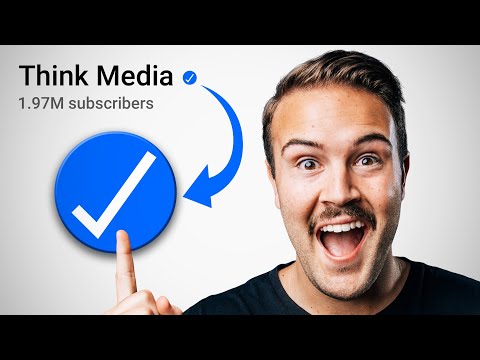 Feature AccessYouTube unlocks channel features in three tiers: standard features for everyone, intermediate features after phone verification, and advanced features after phone verification plus channel history or an ID or video check. All three are checked in YouTube Studio under Settings > Channel > Feature eligibility.
-
 HandlesA YouTube handle is a channel's unique @name, 3 to 30 characters long. Change it in YouTube Studio under Customization > Profile > Handle, or at youtube.com/handle, up to twice in 14 days.
-
 HypeHype is a YouTube button that lets viewers push a video they love up a weekly leaderboard during its first 7 days. Each viewer gets 3 free hypes a week, smaller channels earn more points per hype, and it is open to Partner Program channels with 500 to 500,000 subscribers.
-
 Live StreamingTo live stream on YouTube a channel must be verified, have no live streaming restrictions in the past 90 days and belong to someone at least 16; streaming from a phone also needs 50 subscribers. The first time can take up to 24 hours to switch on; then go live from a webcam, a phone or an encoder like OBS.
-
 PremieresA YouTube Premiere plays a prerecorded video as a live event: a public watch page with a countdown, live chat and a set start time, after which the video stays on the channel as a normal upload. Set it in YouTube Studio with "Set as instant Premiere" or Schedule > "Set as Premiere".
-
 Thumbnail Test and CompareYouTube's Test and compare (A/B testing) shows up to three thumbnails, titles, or pairs of both to viewers of one video and picks the winner by watch time share, in a few days to two weeks. It runs in YouTube Studio on a computer and needs advanced features.
-
Titles Descriptions and TagsA YouTube title can be 100 characters, a description 5,000 and the tags 500 in total, and none may contain < or >. Over 60 hashtags and YouTube ignores them all. Misleading titles, ALL CAPS and stuffed tags can cost a channel its monetization.
-
Verification BadgeA YouTube channel can apply for the gray check mark verification badge once it has 100,000 subscribers, 2-Step Verification and a complete profile, in YouTube Studio under Settings > Channel > Verified badge. The badge cannot be bought, and renaming the channel removes it.
See also
-
 Captions and SubtitlesTurn YouTube captions on with the CC button or the C key, translate them with Settings, Subtitles/CC, Auto-translate, and restyle them under Options. Creators add captions in YouTube Studio's Subtitles page; automatic captions cover 67 languages.
-
 AdSense for YouTubeAdSense for YouTube is the Google account that pays YouTube creators. Earnings are credited between the 7th and 12th of each month and paid between the 21st and 26th once the balance reaches the $100 payment threshold, after the address is verified with a mailed PIN at $10.
-
 2-Step VerificationYouTube requires 2-Step Verification on the Google Account of every channel in the YouTube Partner Program (to use YouTube Studio since Nov 1, 2021) and of every channel applying for the verification badge; YouTube recommends a passkey as the second step because it resists phishing best.
-
 Hacked Channel RecoveryTo recover a hacked YouTube channel, first recover the Google Account that owns it (password reset and Google's account recovery), then undo the hacker's changes with YouTube Studio's cleanup tool, then secure the account with 2-Step Verification; YouTube's hacked channel assistant helps in English, Spanish and Portuguese.
- Creator AwardsYouTube Creator Awards are the Play Buttons YouTube sends channels that pass a review at 100,000 subscribers (Silver), 1 million (Gold), 10 million (Diamond) and 100 million (Red Diamond). Subscribers alone are not enough: the channel must be active, original and free of recent strikes.
-
 Custom ThumbnailsYouTube recommends custom thumbnails of 3840 x 2160 for videos (2160 x 3840 for Shorts), at least 640 pixels wide, in JPG or PNG, up to 50 MB on a computer or 2 MB on a phone. Uploading one needs a verified account; Shorts thumbnails are set only in YouTube Studio on a computer.