
 All vikis
 007 First Light
 AI
 Aion 2
 Ananta
 ARC Raiders
 ArcheAge Chronicles
 Call of Duty: Modern Warfare 4
 ChatGPT
 Chrono Odyssey
 Civilization 3
 Civilization 4
 Claude
 Crimson Desert
 Deadlock
 Diablo 4
 Diablo 5
 Enshrouded
 Fable
 Final Fantasy Resonance
 Football Manager 27
 Forza Horizon 6
 God of War
 Grand Theft Auto 6
 Heroes of Might and Magic 3
Live Streaming
To live stream on YouTube a channel must be verified, have no live streaming restrictions in the past 90 days and belong to someone at least 16; streaming from a phone also needs 50 subscribers. The first time can take up to 24 hours to switch on; then go live from a webcam, a phone or an encoder like OBS.
To go live on YouTube, a channel needs to be verified, free of live streaming restrictions for the past 90 days, and run by someone at least 16 years old; streaming from the YouTube app on a phone also needs at least 50 subscribers. Turning live streaming on for the first time can take up to 24 hours. After that, a stream starts from the Create > Go live button in YouTube Studio (the Live Control Room) with a webcam, from the YouTube app on a phone, or from encoder software such as OBS, which sends the picture to YouTube with a stream key.
Quick facts
| Needed | Verified channel, no live restrictions in 90 days, age 16+ (13 to 15 only visibly with an adult) |
| Phone streaming | At least 50 subscribers; audience may be limited below 1,000 |
| First time | Up to 24 hours to switch on |
| Ways to stream | Webcam, phone, encoder, game console |
| Active streams | Up to 10 per channel and 3 per stream key |
| Latency | Normal; Low (under 10 seconds); Ultra-low (under 5 seconds); no 4K on the low settings |
| Archive | Streams under 12 hours are saved automatically |
Sources: Get started with live streaming, live stream on mobile, encoder streaming and latency, YouTube Help, as of Nov 6, 2026.
What do I need to live stream on YouTube?
- A verified channel: a phone check in YouTube Studio (see Feature Access).
- No live streaming restrictions in the past 90 days. A Community Guidelines strike blocks live streaming for a time, and a stream that matches another copyrighted live broadcast can bring restrictions (YouTube Help; Community Guidelines Strikes).
- Age 16 or older. Creators aged 13 to 15 may stream only visibly accompanied by an adult.
- For the phone app, 50 subscribers or more. Below 1,000 subscribers YouTube may cap how many people can watch a mobile stream, and the archive starts out private; lifting the cap after reaching 1,000 can take several weeks (YouTube Help).
The bar for phones has come down. YouTube's own introduction to live streaming, posted on Jul 14, 2020, asked for at least 1,000 subscribers to stream from the app, where Help asks for 50 as of Nov 6, 2026, while streaming from a computer's webcam needed nothing beyond the channel then as now.
How do I go live on YouTube?
- Switch it on: in YouTube Studio click Create > Go live. The first time, enabling can take up to 24 hours.
- Choose how: Webcam streams straight from the browser; Stream is for an encoder; on a phone, tap Create > Go live in the YouTube app.
- For an encoder: install one (software or hardware), connect the camera and microphone, open the Stream tab of the Live Control Room, and copy the stream URL and stream key into the encoder (some call the URL "RTMP server").
- Set the details: title, description, thumbnail, audience, latency and whether chat is on.
- Start: start the encoder (or press Go live); the watch page is created and the stream begins. To end, stop the encoder.
Source: YouTube Help. Never share the stream key: anyone who has it can broadcast on the channel.
Before the first real stream, YouTube suggests a test stream set to Unlisted or Private to check the sound and picture, then telling the audience when the stream will be, and it reminds streamers that everything shown live must follow the Community Guidelines and Terms of Service.
Encoders
An encoder lets a stream show gameplay, overlays and several cameras, and use better microphones. YouTube lists verified encoders, none of them its own, including OBS, Streamlabs, StreamYard, Restream, XSplit Broadcaster, Wirecast, Ecamm and PRISM Live Studio for computers, hardware such as Blackmagic Web Presenter 4K and LiveU Solo, and mobile apps such as Larix Broadcaster (YouTube Help). For a vertical stream alongside the normal one, use the RTMP(S) protocol with a second stream key, set before the stream starts.
Latency: Normal, Low or Ultra-low
Latency is the delay between the streamer and the viewer. Normal gives the best quality and the least buffering and suits streams with little interaction. Low brings most viewers within 10 seconds, and Ultra-low within 5 seconds, for streams built on chat; neither supports 4K, and Ultra-low can buffer more (YouTube Help).
Archives, clips and the /live link
Streams shorter than 12 hours are saved automatically as a video on the channel; longer ones are not archived. In 2018 the limit was 8 hours, George Vanous of the Freedom! network noted at the time. Viewers can make Clips of a stream, but the clips appear only after it ends, and a stream without DVR (rewind) cannot be clipped at all (YouTube Help).
To promote a channel's streams, George's tip is to share youtube.com/@handle/live rather than a single stream's link, because that address always points to whatever the channel is streaming now: see Share the Live Link.
Earning from live streams
Streams can carry ads, and channels with the features can earn from Super Chat and Super Stickers, Channel Memberships (including members-only streams) and Gifts and Jewels (YouTube Help). Eligible creators can also play YouTube Playables on a vertical mobile stream. Looping old videos as a "live" stream to farm views falls under YouTube's spam and circumvention policies.
Frequently asked questions
How many subscribers do you need to live stream on YouTube? None on a computer: YouTube requires a verified channel with no live restrictions in 90 days and a streamer aged 16 or over. Streaming from the YouTube mobile app needs at least 50 subscribers.
Why can't I go live on YouTube? The usual reasons are an unverified channel, a live streaming restriction or strike in the past 90 days, being under 16, fewer than 50 subscribers for mobile, or the first-time wait of up to 24 hours.
What is a YouTube stream key? A YouTube stream key is the secret code from the Live Control Room's Stream tab that, with the stream URL, lets an encoder such as OBS broadcast to a channel. Keep it private.
How long can a YouTube live stream be? YouTube saves streams shorter than 12 hours as videos automatically; longer streams can run but are not archived.
What is ultra-low latency on YouTube? Ultra-low latency is a YouTube Live setting that brings most viewers within 5 seconds of the streamer, for chat-heavy streams, at the cost of no 4K and possibly more buffering.
Can I live stream on YouTube from my phone? Yes, from the YouTube app with at least 50 subscribers; below 1,000 subscribers YouTube may limit the audience of a mobile stream.
Sources
- Get started with live streaming, YouTube Help, read Nov 6, 2026
- Create a live stream on mobile, YouTube Help, read Nov 6, 2026
- Create a YouTube live stream with an encoder, YouTube Help, read Nov 6, 2026
- Choose live latency, YouTube Help, read Nov 6, 2026
- Live streaming restrictions, YouTube Help, read Nov 6, 2026
- Clips, YouTube Help, read Nov 6, 2026
- Intro To Live Streaming on YouTube, YouTube Creators, Jul 14, 2020 (video)
Moments
Intro To Live Streaming on YouTube
YouTube Creators
- To go live on YouTube, a channel needs to be verified, free of live streaming restrictions for the past 90 days, and…
- The bar for phones has come down. YouTube's own introduction to live streaming, posted on Jul 14, 2020, asked for at…
- Before the first real stream, YouTube suggests a test stream set to Unlisted or Private to check the sound and…
- An encoder lets a stream show gameplay, overlays and several cameras, and use better microphones. YouTube lists…
Related
-
 Channel PermissionsYouTube channel permissions let an owner give other Google Accounts the Manager, Editor, Editor (limited), Subtitle editor, Viewer or Viewer (limited) role in YouTube Studio under Settings > Permissions, without sharing a password. Transferring a channel to a new primary owner needs a Brand Account and a 7-day wait.
- Creator AwardsYouTube Creator Awards are the Play Buttons YouTube sends channels that pass a review at 100,000 subscribers (Silver), 1 million (Gold), 10 million (Diamond) and 100 million (Red Diamond). Subscribers alone are not enough: the channel must be active, original and free of recent strikes.
-
 Custom ThumbnailsYouTube recommends custom thumbnails of 3840 x 2160 for videos (2160 x 3840 for Shorts), at least 640 pixels wide, in JPG or PNG, up to 50 MB on a computer or 2 MB on a phone. Uploading one needs a verified account; Shorts thumbnails are set only in YouTube Studio on a computer.
-
 HandlesA YouTube handle is a channel's unique @name, 3 to 30 characters long. Change it in YouTube Studio under Customization > Profile > Handle, or at youtube.com/handle, up to twice in 14 days.
-
 HypeHype is a YouTube button that lets viewers push a video they love up a weekly leaderboard during its first 7 days. Each viewer gets 3 free hypes a week, smaller channels earn more points per hype, and it is open to Partner Program channels with 500 to 500,000 subscribers.
-
 PremieresA YouTube Premiere plays a prerecorded video as a live event: a public watch page with a countdown, live chat and a set start time, after which the video stays on the channel as a normal upload. Set it in YouTube Studio with "Set as instant Premiere" or Schedule > "Set as Premiere".
-
 Thumbnail Test and CompareYouTube's Test and compare (A/B testing) shows up to three thumbnails, titles, or pairs of both to viewers of one video and picks the winner by watch time share, in a few days to two weeks. It runs in YouTube Studio on a computer and needs advanced features.
-
Titles Descriptions and TagsA YouTube title can be 100 characters, a description 5,000 and the tags 500 in total, and none may contain < or >. Over 60 hashtags and YouTube ignores them all. Misleading titles, ALL CAPS and stuffed tags can cost a channel its monetization.
See also
-
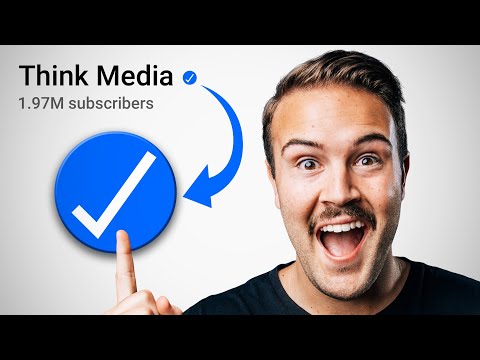 Feature AccessYouTube unlocks channel features in three tiers: standard features for everyone, intermediate features after phone verification, and advanced features after phone verification plus channel history or an ID or video check. All three are checked in YouTube Studio under Settings > Channel > Feature eligibility.
-
 Community Guidelines StrikesA first YouTube Community Guidelines violation is usually only a warning, which expires 90 days after you finish a short policy training. After that, strikes freeze posting for one week, then two, and a third strike in 90 days can remove the channel.
-
 ClipsA YouTube clip is a 5 to 60 second piece of someone's video or live stream, with its own link, that plays on a loop. Make one with Clip under the video; creators turn Clips off in YouTube Studio under Settings, Channel, Advanced settings.
-
 Share the Live LinkShare youtube.com/@yourhandle/live instead of one stream's watch link: while the channel is live, YouTube opens the current stream, and when it is not, the channel page.
-
 Super Chat and Super StickersSuper Chat lets YouTube viewers pay to highlight a message in a live stream or Premiere chat, and Super Stickers to post an animated sticker there. Creators need the fan funding tier of the YouTube Partner Program (500 subscribers) and get 70% of net revenue.
-
 Channel MembershipsYouTube channel memberships let viewers pay a creator monthly through the Join button for perks like badges, emoji and members-only videos. Creators need the fan funding tier of the YouTube Partner Program (500 subscribers), can offer up to 6 levels priced from $0.99 to $499.99 in the US, and keep 70% of net revenue.