
 All vikis
Exact Upload Time of a Video
YouTube shows only the day a video was published, but the watch page's source holds the time to the second, after itemprop="datePublished", written in Pacific time. For a live stream that time is when the recording was published, minutes after the stream ended; the start is in a separate startDate line.
To see the exact time a YouTube video was published, open its watch page on a computer, press Ctrl + U (Option + Command + U on a Mac) to view the page source, press Ctrl + F and search for datePublished. The value after content= is the time to the second. For the first video on YouTube it reads 2005-04-23T20:31:52-07:00: Apr 23, 2005 at 8:31:52 PM, and the -07:00 at the end says the clock is seven hours behind UTC, which is Pacific Daylight Time. YouTube writes this value in Pacific time for everyone: Vi.ki requested the page from the United Arab Emirates on Nov 13, 2026 and got Pacific time, and asking for the Japanese version of the page (&gl=JP&hl=ja) returned the same value.
Next: the creator's tags, read from the same page source, the publish times of a channel's 15 newest videos in one request, already in UTC or how a scheduled video's public time is set.
Turning it into your own time
The last six characters are the offset from UTC: -07:00 from March to November, when California is on daylight time, and -08:00 for the rest of the year. Subtract the offset to get UTC (so add seven or eight hours), then add your own.
| As written in the page | 2005-04-23T20:31:52-07:00 |
| Pacific Daylight Time | Apr 23, 2005, 8:31:52 PM |
| UTC | Apr 24, 2005, 3:31:52 AM |
| London (UTC+1 that day) | Apr 24, 2005, 4:31:52 AM |
| Dubai (UTC+4) | Apr 24, 2005, 7:31:52 AM |
| Tokyo (UTC+9) | Apr 24, 2005, 12:31:52 PM |
This is also why the date under a video can look a day off. The page YouTube returned to us for "Me at the zoo" prints "Apr 23, 2005" under the player, the Pacific date, although the video went public on Apr 24 by the clock of most of the world.
Checked against a second source
A channel's feed gives each video's published time separately, in UTC (Channel RSS Feed). For two videos YouTube's channel published that week, the two values, read on Nov 13, 2026, describe the same second:
| Video | Watch page datePublished |
Feed published |
|---|---|---|
A long video, 8vAPJgyoO9g |
2026-11-12T07:04:17-08:00 |
2026-11-12T15:04:17+00:00 |
A Short, r-tZnHuRC0I |
2026-11-11T13:05:17-08:00 |
2026-11-11T21:05:17+00:00 |
A Short opened at its /shorts/ address carries the line too. On every page we read, a second line, itemprop="uploadDate", held exactly the same value as datePublished.
Live streams: the time is not the start
For a finished live stream the value is neither the start nor the end. We read six past streams on YouTube's own channel on Nov 13, 2026. Each page also has startDate and endDate lines, in UTC, and in all six datePublished fell after the end:
| Stream | startDate (UTC) |
endDate (UTC) |
datePublished, in UTC |
After the end |
|---|---|---|---|---|
kIaRERgMqSY |
Feb 8, 2026, 02:56:11 | 04:42:38 | 04:49:04 | 6 min 26 s |
XZiJMU7aDYo |
Oct 11, 2025, 17:47:45 | 19:44:43 | 19:53:12 | 8 min 29 s |
_zu9SObJ6YQ |
Feb 9, 2025, 01:52:51 | 03:39:01 | 03:46:51 | 7 min 50 s |
A7OMB35CYig |
Aug 25, 2024, 22:55:32 | 00:41:54 | 00:48:33 | 6 min 39 s |
aEaih4Scaik |
Jun 16, 2022, 22:45:12 | 01:08:17 | 01:19:43 | 11 min 26 s |
JV27jxYmN2w |
Dec 14, 2012, 00:00:16 | 00:30:53 | 00:32:29 | 1 min 36 s |
So to learn when a stream went live, search the source for startDate, not datePublished. A stream that has not happened yet behaves differently again: for one scheduled on YouTube's channel (Kd7Sa22aCHg), datePublished was Oct 26, 2026, the day the stream was set up, while startDate held the planned start, 2026-11-19T04:00:00+00:00, and the page read "Scheduled for Nov 18, 2026", the Pacific date once more.
What it cannot tell you
The value is when the video became public. YouTube Help describes uploading a video as private or scheduling it for later (Schedule video publish time), and for such a video the moment the file was uploaded is not in the page; we had no video of our own to test how far apart the two can be, so treat the name uploadDate as a label, not a promise. On a phone, the YouTube app has no page source to read, and a phone browser may not offer one; the feed address works there instead.
The other way round the missing time is a site that reads the page for you. How To Social's Sep 14, 2023 guide starts from the same gap, a watch page that shows only the date, then pastes the video's link into a YouTube metadata website, submits it and scrolls to "published on", where the time is given.
What we think
We think this line is safe to rely on, more than most tricks on this viki, because it is not there for viewers: datePublished and uploadDate are the fields search engines read to date a video, and YouTube has every reason to keep feeding them.
We think both lines will still be in the watch page's source a year from now, still in Pacific time.
Confidence: Likely. Check by: Nov 13, 2027.
What would prove us wrong: the source of youtube.com/watch?v=jNQXAC9IVRw no longer containing 2005-04-23T20:31:52-07:00 on that day.
Sources
- Schedule video publish time, YouTube Help, read Nov 13, 2026
- Me at the zoo, jawed, the page source read Nov 13, 2026
- Vi.ki's requests to youtube.com watch and Shorts pages and to youtube.com/feeds/videos.xml, signed out, from the United Arab Emirates, Nov 13, 2026
- How to Find the Exact Upload Date and Time of Any YouTube Video (Free, 2026), CheckSEO, Nov 18, 2026 (video)
- How To Find The Exact Time A YouTube Video Was Uploaded (2023 Guide), How To Social, Sep 14, 2023 (video)
Moments
How to Find the Exact Upload Date and Time of Any YouTube Video (Free, 2026)
CheckSEO
How To Find The Exact Time A YouTube Video Was Uploaded (2023 Guide)
How To Social
Related
-
-
 Embed a YouTube ShortA YouTube Short embeds like any video, at youtube.com/embed/ followed by its ID, but in a tall frame: width 315 and height 560 keep it 9:16. YouTube's own oEmbed answer for a /shorts/ address, read Nov 21, 2026, gave a vertical 113 by 200 frame, and the same video asked for by its watch address a horizontal one.
-
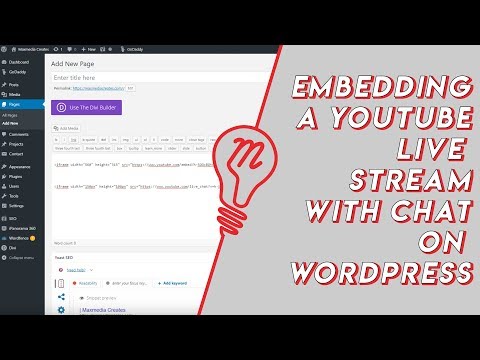 Embed YouTube Live ChatTo put a YouTube live stream's chat on your own website, use an iframe whose address is youtube.com/live_chat?v= followed by the stream's video ID and &embed_domain= followed by your site's host name. In Vi.ki's test on Nov 21, 2026 YouTube let the chat into a frame only when that host matched the page exactly, www included.
-
 Every YouTube Embed ParameterEvery parameter a YouTube embed address takes, in one sortable table: the 21 in Google's IFrame player reference plus mute, with each one's values, default and what the embed page did with it in Vi.ki's test on Nov 18, 2026. Start and end are the pair worth knowing; rel=0 no longer hides related videos.
-
 Every YouTube URL FormatEvery address form YouTube answers for videos, channels, playlists and lookups, each requested on Nov 19, 2026 with what came back. Eleven video forms all lead to youtube.com/watch?v=ID, the one address YouTube names as canonical for an ordinary video; five channel forms all lead to youtube.com/channel/ID.
-
 Find a Channel IDFind any YouTube channel's ID on its channel page by opening the description (the About panel), then Share channel > Copy channel ID; your own is also under Settings > Advanced settings, or at youtube.com/account_advanced.
-
 Frame by Frame with Comma and PeriodOn YouTube on a computer, pause the video, then press the period key to step one frame forward and the comma key to step one frame back.
-
 Get a Channel's Profile Picture at Full SizeTake the address of a YouTube channel's profile picture, delete everything from the = sign on and write =s0 instead: YouTube then serves the picture as the channel uploaded it. In Vi.ki's test on Nov 14, 2026 that was 1080 by 1080 for YouTube's own channel and 178 by 178 for the first uploader's, while the 900 by 900 copy in the page was blown up for three of five channels.
See also
-
 See a Video's Hidden TagsYouTube hides a video's tags from viewers, but on a computer anyone can read them in the page source: open view-source: before the watch address and search for name="keywords".
-
 Channel RSS FeedEvery YouTube channel has an RSS feed at youtube.com/feeds/videos.xml?channel_id= plus the channel ID. It lists the 15 newest uploads, Shorts included; in Vi.ki's test on Nov 13, 2026, swapping in playlist_id=UULF plus the rest of the ID gave a feed of long videos only.
-
 PremieresA YouTube Premiere plays a prerecorded video as a live event: a public watch page with a countdown, live chat and a set start time, after which the video stays on the channel as a normal upload. Set it in YouTube Studio with "Set as instant Premiere" or Schedule > "Set as Premiere".
-
 Block a Video by CountryAn ordinary YouTube channel cannot block its own video in chosen countries. The setting exists only in Studio Content Manager, the tool of networks and rights holders, and it is built for licensing, not for hiding from an audience.
-
 Channel Membership Join LinkA YouTube channel's membership link is its address with /join added, such as youtube.com/@LofiGirl/join, which YouTube Help says links "directly to your membership window". It works after a handle or a channel ID; in Vi.ki's test on Nov 19, 2026 a channel without memberships answered the same address with its plain channel page.
-
 Check If a YouTube Video Can Be EmbeddedOpen youtube.com/oembed?url= followed by the video's watch address: in Vi.ki's test on Nov 21, 2026 it answered 200 with the embed code when the video embeds, 401 Unauthorized when its owner turned embedding off, 403 Forbidden for a private video and 404 Not Found for no such video. An age-restricted video still answered 200, though it will not play on other sites.